








Introduction: Why Change Your Name on Facebook?
You may want your Facebook page to represent a new phase in your life, have just gotten married, or have chosen to adopt a nickname. Although changing your name on Facebook may seem like a little adjustment, it may have significant effects. After all, your name serves as your digital identity as it is how friends, family, and coworkers locate and get in touch with you. Perhaps you’re asking yourself, “How can I change my name without losing contacts or encountering problems?” Don’t worry, this tutorial will help you do it correctly the first time by taking you step-by-step through the procedure. You’ll discover everything you need to know to easily change your profile, from accessing lock Facebook’s settings to comprehending their name regulations.
Anticipate concise directions, useful advice, and responses to frequently asked questions. With a conversational, personal touch, this post may help you with everything from rebranding to fixing typos.
Why You Might Want to Change Your Name on Facebook
You may wish to change your name on Facebook for a variety of reasons. Perhaps you just got married and would want to adopt your spouse’s last name. As a creative professional, you could be choosing a stage name or moniker that better captures who you are. For professional purposes, you may also be updating your profile to match your legal name or fixing an old error. Changing your name may revitalize your online persona and give your profile a more genuine vibe, regardless of the reason behind it.
The hitch is that Facebook has certain guidelines about names. Since “authenticity” is important to them, your name should represent who you are in real life. If someone is attempting to use a company name or a humorous alias, this might cause them to stumble. Avoiding rejections or account problems requires an understanding of these rules. Let’s start by discussing how to alter your name without any problems.
Step-by-Step Guide: How to Change Your Name on Facebook
Changing your name on Facebook is straightforward if you follow the right steps. Below is a detailed, beginner-friendly guide to help you update your name on both desktop and mobile devices.
Step 1: Access Your Facebook Settings
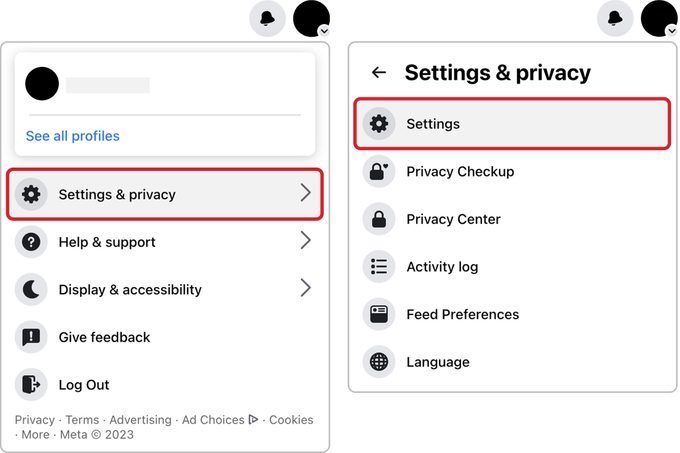
First, you need to find the right menu. Log into your Facebook account and head to the Settings & Privacy section. On a desktop, click the downward arrow in the top-right corner of the screen, then select Settings & Privacy > Settings. If you’re using the mobile app, tap the three-line menu (usually in the bottom-right or top-right corner, depending on your device), scroll down, and select Settings & Privacy > Settings.
This takes you to the control center of your account, where you can manage everything from your name to your privacy settings.
Step 2: Navigate to the Name Section
Locate the Personal Information area when you’re in Settings. It’s often located under General Account Settings on a desktop. To locate Personal and Account Information on a mobile device, you may have to scroll. Your current name will be shown on your profile when you click or touch on it. You may change your initial names, last name, and middle name (if you want to).
Step 3: Enter Your New Name
Here’s where you input your new name. Type your desired first name, middle name (if applicable), and last name in the provided fields. Keep in mind Facebook’s naming policies:
- No symbols or numbers: Names like “John123” or “Jane!” won’t be accepted.
- No titles: You can’t add “Dr.” or “Professor” to your name.
- Use your real name: Facebook discourages pseudonyms unless they’re nicknames you’re widely known by.
- No offensive words: Obvious, but worth noting.
If you’re adding a nickname or maiden name, you can include it as an “Other Name” later (more on that below).
Step 4: Review and Submit
Check your new name again for mistakes, since you may not be able to alter it again for 60 days after it has been filed. Facebook will need your password to verify your identity when you click Review Change. After you click Save Changes, your new name will be sent for approval. The update is usually immediate, although Facebook may ask for further proof (such as a government-issued ID) if it flags it for policy concerns.
Step 5: Add an Alternate Name (Optional)
Do you want to show your maiden name, nickname, or professional name next to your first name? You may add a “Other Name” to your Facebook profile. Return to Settings’ Name section and choose Add additional names. You have the option to have this other name appear at the top of your profile, such as “Jane Smith (Jane Doe)”. For professionals, newlyweds, or anybody wishing to keep relationships under a former name, this is ideal.
TL;DR: Log into Facebook, go to Settings > Personal Information > Name, enter your new name, review it, and submit with your password. Add an alternate name if needed.
Facebook’s Name Change Policies: What You Need to Know
Facebook’s name policies can feel like a maze, but they’re designed to keep the platform authentic. Here’s a quick breakdown:
- Real Names Only: Your profile name should match the name you use in everyday life. This could be your legal name or a nickname you’re known by.
- 60-Day Rule: After changing your name, you can’t change it again for 60 days, so choose wisely.
- Verification Process: If your name seems unusual (e.g., a single word like “Madonna”), Facebook may ask for ID to confirm it’s legitimate.
- Business Names: Personal profiles can’t use business names. If you’re branding a business, create a Facebook Page instead.
Don’t freak out if your name change is denied. You may file an appeal or provide supporting evidence after receiving a communication outlining the reasons. For instance, Sarah, a Chicago teacher, was denied permission to use her maiden name as it did not correspond with her identification. Within a day, the modification was authorized when she supplied a marriage certificate.
Common Mistakes to Avoid When Changing Your Name
Even a simple process like changing your name on Facebook can have pitfalls. Here are some mistakes to steer clear of:
- Ignoring Policies: Using symbols, emojis, or fake names will lead to rejection.
- Typos: A small error can lock you into a name for 60 days.
- Not Updating Connected Accounts: If you use Facebook to log into other apps (like Spotify), ensure your new name doesn’t cause login issues.
- Overcomplicating It: Stick to a name you’re known by to avoid verification hassles.
By planning ahead, you can avoid these headaches and make the process smooth.
How to Change Your Name on Facebook Mobile vs. Desktop
The process is nearly identical on mobile and desktop, but here’s a quick comparison for clarity:
| Platform | Steps | Notes |
| Desktop | Click downward arrow > Settings & Privacy > Settings > General > Name | Larger screen makes navigation easier. |
| Mobile | Tap three-line menu > Settings & Privacy > Settings > Personal and Account Information > Name | Menu placement varies by iOS/Android. |
Both platforms follow the same name policies and 60-day rule. If you’re on the go, the mobile app is just as effective.
FAQs About Changing Your Name on Facebook
Can I change my name to anything I want?
No, Facebook requires names to reflect your real identity. Nicknames are okay if they’re variations of your name (e.g., “Liz” for Elizabeth), but fake or offensive names will be rejected.
How long does it take for the name change to go through?
Most changes are instant, but if Facebook reviews your request, it could take 24–48 hours.
What if my name change is rejected?
A notice with the reason will be sent to you. To confirm your identity, you may file an appeal or provide identification, such as a driver’s license or marriage license.
Can I hide my real name for privacy?
Although you cannot completely conceal your name, you may add a nickname as a “Other Name” or use privacy settings to restrict who can see your profile.
Troubleshooting Name Change Issues
If your name change doesn’t go through, try these steps:
- Check Policies: Ensure your name complies with Facebook’s rules.
- Submit ID: If asked, upload a clear photo of your ID (you can cover non-essential details like your address).
- Contact Support: Go to the Help Center and submit a request if you’re stuck.
- Wait It Out: If you’ve hit the 60-day limit, you’ll need to wait before trying again.
For instance, freelancer Mark attempted to use his brand name but was turned down. He had no problems when he changed his brand to his legal name under the “Other Name” designation.
Why Your Name Matters on Facebook
On Facebook, your name is more than simply a designation; it’s how others discover, identify, and relate to you. A name change might indicate a new stage in life. For example, Emily changed her name after getting married to make it simpler for her former acquaintances to locate her. For personal or professional reasons, it’s also an opportunity to match your online profile with your offline persona. You may avoid needless hassles and make sure your profile accurately represents who you are by following this guidance.
Conclusion: Take Control of Your Facebook Identity
One easy but effective technique to update your online appearance is to change your name on Facebook. This detailed guide makes the procedure simple, whether you’re embracing a new identity, celebrating a life milestone, or fixing a mistake. You may change your profile in a matter of minutes by going to Settings, adding your new name, and abiding by Facebook’s rules. Steer clear of frequent blunders like utilizing unsupported characters or disregarding the 60-day limit, and think about adding a different name to keep relationships intact.
Are you prepared to change your name? Make your profile genuinely unique by going to your Facebook settings right now. A little adjustment might have a significant impact on your relationship with the outside world. What’s preventing you? Now is the time to take charge of your online persona!