







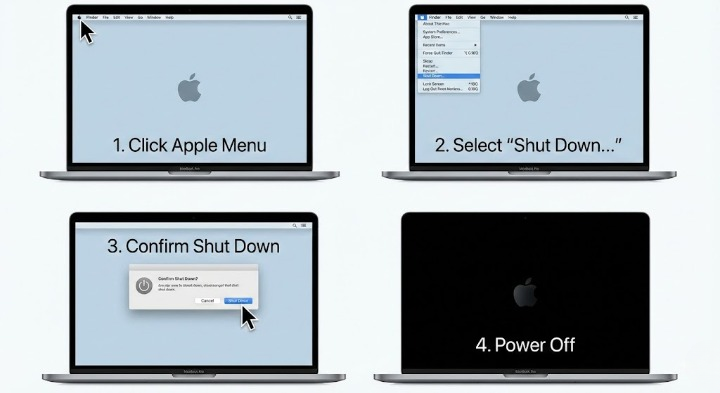
How to Shut Down MacBook Safely The Best Way
The modern computing landscape has shifted dramatically from the rigid on-off binary of early desktop towers to the fluid, always-connected states of contemporary mobile appliances. Within this spectrum, the Apple MacBook lineup—encompassing the MacBook Air and MacBook Pro—stands as a paragon of hardware-software integration. However, the fundamental operation of powering down these devices, or how to shut down macbook systems, remains a critical operational protocol that governs system stability, hardware longevity, and data integrity. While the casual user may perceive the shutdown process as a trivial termination of power, the underlying reality is a complex orchestration of kernel-level interrupts, file system journaling, and hardware state management that has evolved significantly with the transition from Intel x86 architecture to Apple Silicon (M1, M2, and M3).
This report serves as an exhaustive analysis of the mechanisms governing macOS power states. It explores the architectural necessity of the shutdown sequence, the comparative benefits of sleep versus deep power cycling, and the granular methods available for executing these commands—from the graphical user interface to the command-line internals of the Darwin kernel. Furthermore, it addresses the hardware operational lifecycle, detailing how to diagnose logic board failures that manifest as shutdown anomalies and offering strategic guidance for selecting the appropriate power management method for various enterprise and consumer scenarios.
The evolution of the Macintosh power architecture reflects a broader industry trend towards efficiency. Historically, the Power Management Unit (PMU) and later the System Management Controller (SMC) on Intel Macs were discrete components responsible for interpreting physical button presses and managing thermal rails. With the advent of Apple Silicon, these functions have been subsumed into the System-on-Chip (SoC) and the Secure Enclave, fundamentally altering the troubleshooting landscape. Understanding how to shut down macbook devices in 2025 therefore requires not just a knowledge of menu options, but an understanding of the symbiotic relationship between the macOS operating system (Sequoia/Sonoma) and the custom silicon upon which it runs.
Section 1: The Rationale for System Shutdown: Why Choose a Full Power Cycle?
In an era where “Instant On” is a key marketing metric, the question arises: Why choose to fully shut down a MacBook at all? Apple’s optimizations in the sleep state, specifically the S0 Low Power Idle state on M-series chips, have made the wake-from-sleep process nearly instantaneous, blurring the line between active and dormant usage. However, the choice to execute a full shutdown is not merely a matter of preference but a technical necessity for specific maintenance and security protocols.
1.1 Volatile Memory Management and Data Flush
The primary technical rationale for choosing a full shutdown lies in the management of Random Access Memory (RAM). macOS utilizes a sophisticated virtual memory management system that compresses data in RAM and swaps inactive pages to the solid-state drive (SSD). Over extended periods of uptime—measured in weeks or months—memory fragmentation can occur, and “zombie processes” (orphaned child processes that haven’t fully terminated) can consume system resources.
When a user initiates the sequence of how to shut down macbook, the operating system performs a critical “flush” operation:
- Process Termination: The kernel sends the SIGTERM signal to all running applications, granting them a window to save state and exit gracefully.
- Cache Clearing: Temporary cache files stored in volatile RAM are obliterated. This is crucial for clearing out corrupt instruction sets that may be causing application instability.
- Swap File Reset: The swap files created on the SSD are released, freeing up storage space and resetting the virtual memory addressing table.
Research indicates that while modern garbage collection in macOS is efficient, memory leaks in third-party applications can persist through sleep cycles. A full shutdown is the only method to guarantee a complete zero-state for the RAM, essentially “cleaning the whiteboard” for the next session.
1.2 Security Implications: The Cold Boot Defense
From a cybersecurity perspective, the state of the machine determines the vulnerability of the data at rest. When a MacBook is in sleep mode, the RAM remains powered to retain the system state. This makes the device theoretically vulnerable to “Cold Boot Attacks,” where an attacker with physical access could attempt to freeze the RAM modules to extract encryption keys before they decay.
Choosing to shut down the MacBook changes the security posture significantly:
- FileVault Encryption: When the Mac is fully shut down, the FileVault encryption keys are evicted from the memory. Upon the next boot, the user must authenticate against the Secure Enclave to decrypt the drive. This “Data at Rest” state is the most secure configuration for a device in transit or storage.
- Session Reset: A shutdown terminates all active network sessions, VPN tunnels, and SSH connections, eliminating the possibility of session hijacking on an unattended machine.
1.3 Hardware Preservation and Thermal Physics
While Apple Silicon runs remarkably cool compared to its Intel predecessors, all electronic components are subject to thermal degradation over time. Continuous operation, even in a low-power sleep state, maintains voltage across the logic board components.
- Battery Chemistry: Lithium-ion polymer batteries degrade based on charge cycles and heat. Leaving a MacBook plugged in and sleeping for months can keep the battery at a high state of charge, which is chemically stressful. A shutdown allows the battery to rest without the micro-drain required to refresh the RAM, particularly if the device is unplugged for storage.
- Component Reset: Capacitors and transistors on the logic board benefit from occasional discharge. As noted in hardware failure analysis, logic board components can develop faults that manifest as overheating or refusal to boot. Regular power cycling can help identify these hardware issues early (e.g., a failure to POST) rather than masking them in a perpetual sleep state.
1.4 The Software Update Lifecycle
The choice to shut down is often forced by the software update lifecycle. Deep system updates—kernel patches, firmware updates for the T2 chip or the M-series Secure Enclave, and macOS version upgrades—cannot be applied while the kernel is active. These updates operate at the “pre-boot” environment (iBoot). Users who avoid shutting down will eventually encounter forced restarts or deferred security patches, leaving their systems vulnerable. Therefore, choosing to proactively shut down and restart is a best practice for maintaining software hygiene.
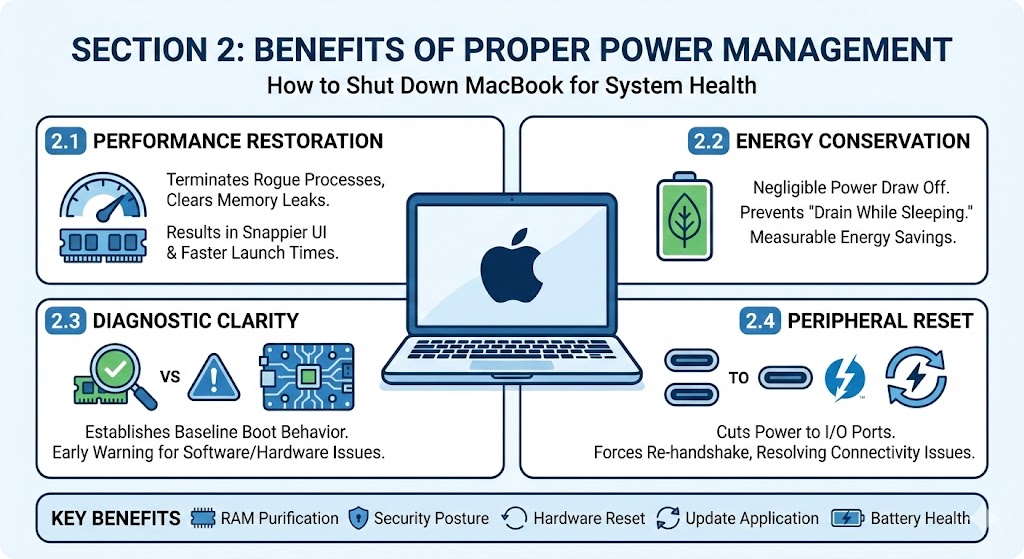
Section 2: Benefits of Proper Power Management
Implementing a disciplined approach to how to shut down macbook yields tangible benefits across system performance, longevity, and operational reliability. While the user interface for shutdown is simple, the downstream effects of this action are profound.
2.1 Performance Restoration and Stability
The most immediate benefit of a full shutdown is the restoration of system responsiveness. Over time, background daemons (system processes) can accumulate operational errors or memory leaks. For example, the WindowServer process, responsible for drawing the GUI, can balloon in memory usage over weeks of uptime.
- Benefit: Shutting down terminates these rogue processes. Upon reboot, macOS loads a fresh instance of the kernel and essential daemons, often resulting in snappier UI animations, faster application launch times, and resolved graphical glitches.
- Insight: Users often conflate “closing the lid” with refreshing the system. However, closing the lid merely suspends the current state. If the current state is degraded (e.g., a memory leak is present), the system wakes up in that same degraded state. Only a shutdown remedies the root cause.
2.2 Energy Conservation and Environmental Impact
While the power consumption of an M3 MacBook in sleep mode is minimal (often less than 0.5 watts), it is not zero. Across an enterprise deployment of thousands of devices, the aggregate energy consumption of sleeping laptops can be significant.
- Benefit: A powered-off MacBook consumes negligible power (microwatts for the internal clock). For users conscious of their energy footprint or managing a fleet of devices, ensuring machines are shut down over weekends or holidays contributes to measurable energy savings.
- Battery Longevity: For laptop users, shutting down prevents the “drain while sleeping” phenomenon caused by Power Nap activities (checking email, indexing Spotlight) which can deplete 5-10% of the battery overnight. Shutting down ensures the battery level remains stable for the next session.
2.3 Diagnostic Clarity
A distinct benefit of the shutdown process is its role as a diagnostic filter. When a user regularly shuts down their machine, they establish a baseline for “normal” boot behavior.
- Benefit: If a Mac begins to hang during shutdown or takes an unusually long time to boot, this serves as an early warning system for software conflicts or failing hardware. Users who never shut down may not notice a failing SSD or a corrupted LaunchDaemon until the system suffers a catastrophic crash (Kernel Panic).
2.4 Peripheral Reset and Connection Clearing
Modern MacBooks rely heavily on Thunderbolt and USB-C peripherals. The drivers for these devices can occasionally enter invalid states, leading to unrecognized drives or non-functional docks.
- Benefit: The shutdown process cuts power to the USB bus (unlike a restart, which often maintains power to peripherals). This “cold” reset of the I/O ports forces the external devices to re-handshake with the host controller, effectively resolving connectivity issues that a simple cable re-plug cannot fix.
Summary of Key Benefits
- RAM Purification: flushes volatile memory and resets swap files.
- Security Posture: Evicts encryption keys and terminates network sessions.
- Hardware Reset: Clears I/O controller states and allows thermal dissipation.
- Update Application: Facilitates the installation of firmware and kernel patches.
- Battery Health: Minimizes cycle count degradation during extended inactivity.
Section 3: Acquisition of Power Management Interfaces and Hardware Remediation (“Where to Buy”)
In the context of power management, the concept of “Where to buy [how to shut down macbook]” translates operationally to: Where does one acquire the tools to manage power states? and Where does one source the hardware components to fix power failures? This section analyzes the ecosystem of built-in interfaces, third-party software solutions, and hardware procurement channels necessary for comprehensive power management.
3.1 Sourcing Built-in Operational Tools
The primary mechanisms for shutting down a MacBook are inherent to the macOS (Darwin) operating system. These are “acquired” simply by owning the device, but “accessing” them requires knowledge of specific subsystems.
3.1.1 The Graphical User Interface (GUI)
The standard consumer interface is located in the Apple Menu ().
- Access Point: Top-left corner of the menu bar > “Shut Down…”
- Cost/Availability: Native to all macOS versions (Sequoia, Sonoma, Ventura, etc.).
- Functionality: Sends AppleEvents to all running applications to request termination. This is the “safe” acquisition method for general users.
3.1.2 The Terminal (Command Line Interface)
For professional users, the power tools are found within the /usr/sbin/ and /usr/bin/ directories.
- Tool: shutdown
- Access: Terminal.app.
- Capability: Allows for scheduled, immediate, or delayed shutdowns. This tool is essential for systems administrators who need to manage power states without graphical interaction.
- Acquisition: Pre-installed on every Mac. Requires sudo (Superuser) privileges.
3.1.3 Recovery Mode and Safe Mode
These are specialized boot environments stored on a separate partition of the SSD or within the firmware.
- Access (Apple Silicon): Hold the Power button during boot.
- Access (Intel): Hold Command + R or Shift.
- Usage: These environments are “bought” with the system and provide the only means to shut down or repair a system that has a corrupted main OS.
3.2 Sourcing Third-Party Power Management Software
For users requiring more granular control than Apple provides—such as conditional shutdowns based on CPU usage or battery level—the software market offers robust solutions.
- Apple Remote Desktop (ARD): An enterprise-grade tool sold by Apple (via the App Store) that allows administrators to remotely send shutdown commands to thousands of Macs simultaneously. This is the industry standard for “buying” mass shutdown capability.
- Scripting Solutions (Cron/LaunchD): While not a purchase, the development of custom plist files for launchd allows users to create bespoke shutdown schedules that persist where the System Settings interface fails (specifically in macOS Sonoma).
- Power Manager (Third-Party App): Commercial software exists that extends the energy saver capabilities, allowing for complex triggers (e.g., “Shut down if the download finishes AND it is after 2 AM”).
3.3 Procurement of Hardware for Power Remediation
When the question “how to shut down macbook” becomes “Why won’t my MacBook shut down?” or “Why won’t it turn on?”, the issue often shifts from software to hardware failure. The research snippets highlight rampant logic board failures in certain M1/M2 models. Sourcing replacement parts is a critical aspect of power management lifecycle.
3.3.1 Logic Board and PMU Replacement
If the Mac refuses to shut down (hanging indefinitely) or refuses to boot (power rail failure), the Logic Board is often the culprit.
- Apple Self Service Repair Store: Apple now sells genuine parts to consumers. Users can “buy” a replacement Logic Board which includes the SoC (M1/M2/M3) and the paired Touch ID sensor.
- Critical Insight: You must buy the board and the Touch ID sensor together, or use Apple’s configuration software (System Configuration) to pair them. A mismatch results in a functioning Mac with no biometric authentication.
- Authorized Service Providers (AASP): For most users, “buying” a shutdown fix means paying for a logic board swap at an AASP.
- The Component Market: Advanced technicians may source specific PMU (Power Management Unit) chips (e.g., from donor boards) to perform microsoldering repairs on the power rails, specifically if the USB-C controller (CD3215/CD3217) has failed, preventing the machine from negotiating power delivery.
3.3.2 Uninterruptible Power Supplies (UPS)
For desktop users (or MacBooks used in “Clamshell” desktop mode), acquiring a UPS is a vital part of the shutdown strategy.
- Integration: Modern UPS devices connect via USB and integrate with macOS Energy Saver. They allow the system to detect a power outage and execute a graceful shutdown script automatically before the external battery drains. This is the ultimate “purchase” for data safety during power events.
Section 4: Strategic Selection of Shutdown Methodologies (“Tips to select the right…”)
Not all shutdowns are created equal. The method selected to execute how to shut down macbook should be context-dependent, varying based on the state of the system, the urgency of the action, and the hardware architecture (Intel vs. Silicon). This section provides expert tips on selecting the correct methodology.
4.1 Tip 1: Distinguish Between Architecture (Intel vs. Silicon)
The most critical tip for selecting a shutdown method is knowing your hardware, as the physical inputs have changed.
- For Intel-Based Macs:
- Standard: Apple Menu > Shut Down.
- Shortcut: Control + Option + Command + Power/Eject. This is the “Pro” shortcut that bypasses confirmation dialogs but still saves data. It is highly effective for quick departures.
- SMC Reset: If the Mac is acting oddly, a shutdown followed by Shift + Control + Option + Power (on the left side) resets the System Management Controller.
- For Apple Silicon (M1/M2/M3):
- Standard: Apple Menu > Shut Down.
- Shortcut: The complex three-finger chords of the Intel era often do not work on Touch ID sensors because the sensor requires a specific physical depression force and does not register “keypresses” in the same matrix.
- Selection Tip: Do not rely on legacy shortcuts. Use the Apple Menu or map a custom shortcut in System Settings (System Settings > Keyboard > Keyboard Shortcuts > App Shortcuts) to bind “Shut Down…” to a key combo like Cmd + Opt + Ctrl + S.
4.2 Tip 2: The Hierarchy of Force (Graceful vs. Force)
Users must select the appropriate level of force for the situation.
- Level 1: Graceful Shutdown (Preferred)
- Method: Apple Menu or sudo shutdown -h now in Terminal.
- Use Case: Daily end-of-work, software updates.
- Mechanism: Sends NSApplicationTerminate. Apps can say “No” (cancel the shutdown) if data is unsaved.
- Level 2: Force Quit + Shutdown
- Method: If an app halts the Level 1 process, use Option + Cmd + Esc to force quit the offender, then retry Level 1.
- Use Case: One specific app is frozen (e.g., Word is stuck).
- Level 3: Hardware Force Shutdown (Emergency)
- Method: Press and hold the Power/Touch ID button for 10 full seconds.
- Use Case: System is completely frozen (kernel panic, mouse not moving).
- Warning: This is a “dirty” shutdown. It cuts power to the CPU instantly. File system corruption is possible. Use only when absolutely necessary.
4.3 Tip 3: Automated and Scheduled Selection
For enterprise environments or users with specific routines, manual shutdown is inefficient.
- Tip: Use pmset for automation. In macOS Sonoma, the GUI for scheduling is gone. You must use the Terminal.
- Command: sudo pmset repeat shutdown MTWRFSU 23:00:00
- Selection: Choose this if you want to enforce a “fresh boot” policy for employees or students every morning.
4.4 Tip 4: Troubleshooting the “Refusal to Shutdown”
If you select “Shut Down” and nothing happens, the system is likely waiting on a process.
- Tip: Check Activity Monitor.
- Tip: Detach Peripherals. A faulty external drive can hang the kernel’s storage unmounting process. Unplugging all USB-C devices often allows the shutdown to proceed immediately.
4.5 Decision Matrix: Selecting the Right Method
| Scenario | Recommended Method | Command/Action |
| Routine Daily Close | GUI Standard | Apple Menu > Shut Down |
| System Frozen/Unresponsive | Hardware Force | Hold Power Button (10s) |
| Remote Management | SSH / Terminal | sudo shutdown -h now |
| Scheduled Maintenance | PMSET | sudo pmset repeat shutdown… |
| Touch Bar/No Keyboard | GUI or Siri | “Hey Siri, shut down my Mac” |
| Closing Lid | Sleep (Not Shutdown) | Do not use for long storage |
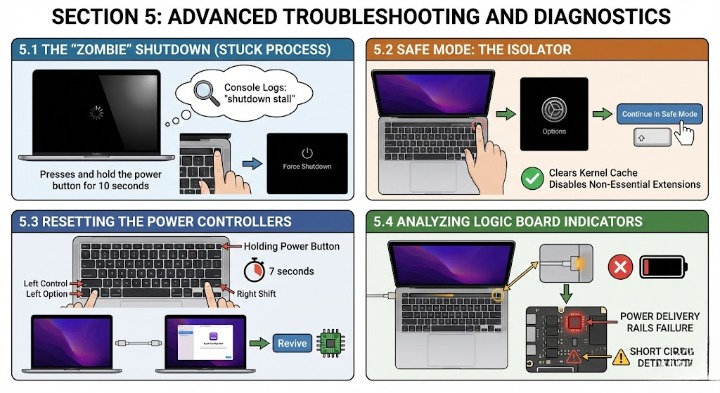
Section 5: Advanced Troubleshooting and Diagnostics
Even with the correct procedures, users may encounter scenarios where the MacBook fails to complete the power-down sequence. This usually manifests as a persistent spinning wheel on a black screen, a “kernel panic” text overlay, or a spontaneous restart. This section details the advanced diagnostic steps for resolving these anomalies.
5.1 The “Zombie” Shutdown (Stuck Process)
A common failure mode is the “Zombie” shutdown, where the UI disappears, the screen goes black, but the backlight remains on and the trackpad may still click. This indicates the WindowServer has quit, but the kernel is stuck waiting for a low-level driver (kext) to unload.
- Diagnostic: If this occurs, perform a Force Shutdown (10s hold). Upon reboot, open the Console app and search for “shutdown stall” logs. This often points to third-party antivirus or firewall extensions that refused to release the network stack.
5.2 Safe Mode: The Isolator
If a Mac consistently crashes during shutdown, booting into Safe Mode is the primary diagnostic step. Safe Mode clears the kernel cache and disables all non-essential system extensions.
- Execution (Apple Silicon): Shut down (Force if needed) > Hold Power Button until “Options” appears > Select Disk > Hold Shift > Click “Continue in Safe Mode”.
- Result: If the machine shuts down correctly from Safe Mode, the issue is confirmed to be a third-party application or startup item (LaunchAgent). The user can then proceed to uninstall recently added software.
5.3 Resetting the Power Controllers
As discussed in the architecture section, corrupt power management settings can prevent shutdown.
- Intel Macs: Reset the SMC. This requires a specific finger gymnastics routine (Left Control + Left Option + Right Shift + Power Button for 7 seconds).
- Apple Silicon: The concept of an SMC reset is obsolete. However, a “hard” restart simulates this. If issues persist, users can perform a “Revive” of the firmware using a second Mac and the Apple Configurator software (DFU Mode), which rewrites the firmware of the power management co-processors without deleting user data.
5.4 Analyzing Logic Board Indicators
In severe cases, inability to shut down or power on indicates physical failure.
- Symptoms: The device shuts down randomly (thermal shutdown), or the battery is plugged in but drains.
- Diagnosis: On M1/M2/M3 Macs, these symptoms often point to a failure in the power delivery rails on the logic board. The “MagSafe” light can be a diagnostic tool: if it blinks amber, the logic board is detecting a short circuit and refusing to power the system to prevent fire.
Shut Down MacBook
Conclusion
The operation of how to shut down macbook devices is a microcosm of the broader shift in personal computing: a move from mechanical, user-driven switches to software-defined, intelligent power states. While the physical act—pressing a button or clicking a menu—remains simple, the implications of that choice are vast.
For the modern user, particularly those on Apple Silicon, the paradigm has shifted. The “Always On” capability of the M3 chip makes sleep the default preference for efficiency and speed. Yet, the necessity of the full shutdown remains undiminished for security, system hygiene, and hardware troubleshooting. The removal of visible scheduling tools in macOS Sonoma forces a reliance on the terminal, underscoring a trend where advanced power management is becoming a domain of the technical elite.
By mastering the various methods of shutdown—from the graceful GUI exit to the command-line force of sudo shutdown—and understanding the hardware architecture that supports them, users can ensure their MacBooks remain reliable, secure, and performant tools. Whether preserving the battery life of a vintage Intel MacBook Air or managing a fleet of M3 Max MacBook Pros, the principles of power management outlined in this report provide the foundation for operational excellence.
Click Here For More Information: https://ecofiy.com/